



Installation and Upgrade
Installing Authentication API for Microsoft .NET
-
Right-click the
SafeNet Authentication Service .NET Authentication API x64.exeinstallation file and select Run as administrator. -
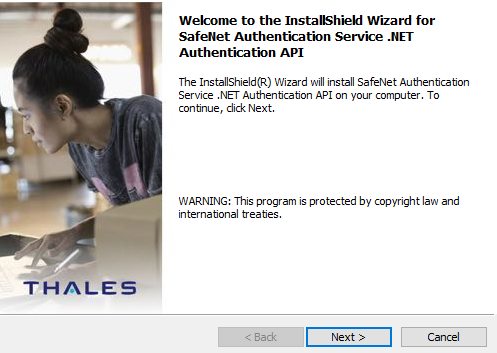
On the Welcome to the InstallShield Wizard for SafeNet Authentication Service .NET Authentication API window, click Next.
-
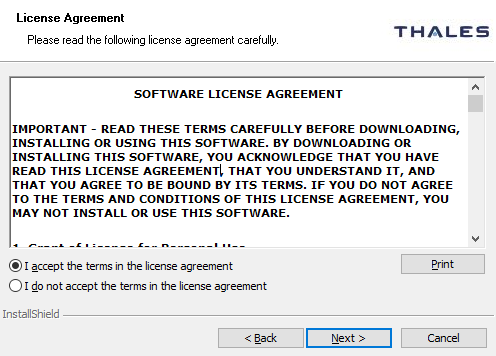
On the License Agreement window, read the software license agreement and, to proceed, select I accept the terms in the license agreement, and click Next.
-
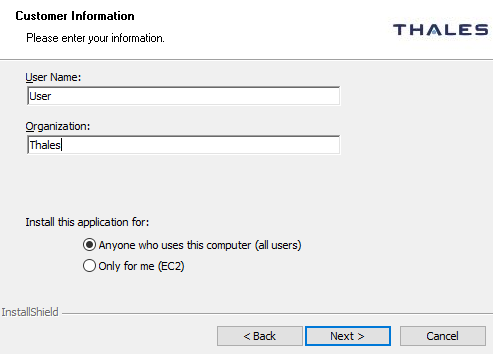
On the Customer Information window, perform the following steps:
a. In the User Name field, enter your user name.
b. In the Organization field, enter the name of your organization (any name can be used).
c. Click Next.
-
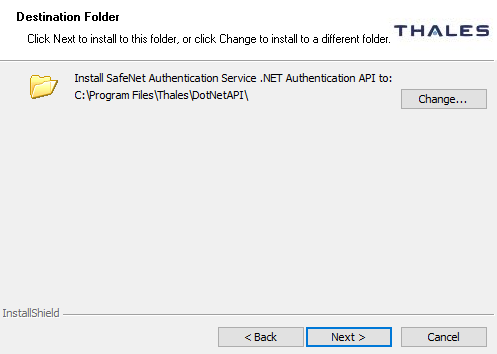
On the Destination Folder window, perform one of the following steps:
- To change the installation folder, click Change and navigate to the required folder, and then click Next.
- To accept the default installation folder as displayed, click Next.
Note
We strongly recommend installing the application in a system-protected folder accessible only to accounts with the required privileges.
The default location is in the Program Files folder, which is not read protected. This means that the location must be changed to a protected location that cannot be read by non-administrative accounts.
-
On the Authentication Service Setup window, complete the following fields and click Next.
Field Description Location Enter the hostname or IP address of the primary SAS server. Failover SAS URL Enter the hostname or IP address of the failover SAS server (optional). Connect using SSL (requires valid certificate) Select to use SSL. This option requires installation of a valid certificate on the NPS server. 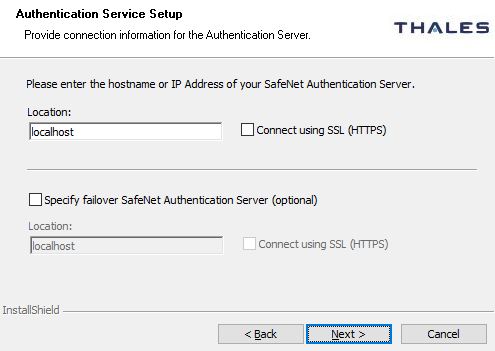
-
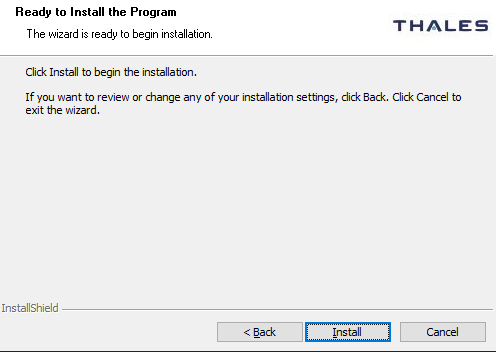
On the Ready to Install the Program window, click Install.
-
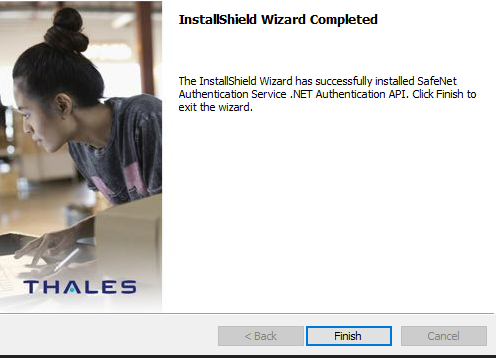
Once the installation is completed, the InstallShield Wizard Completed window is displayed. Click Finish to exit the installation wizard.
Upgrading Authentication API for Microsoft .NET
Upgrade is not supported.

