Testing The Solution
Standard Authentication
-
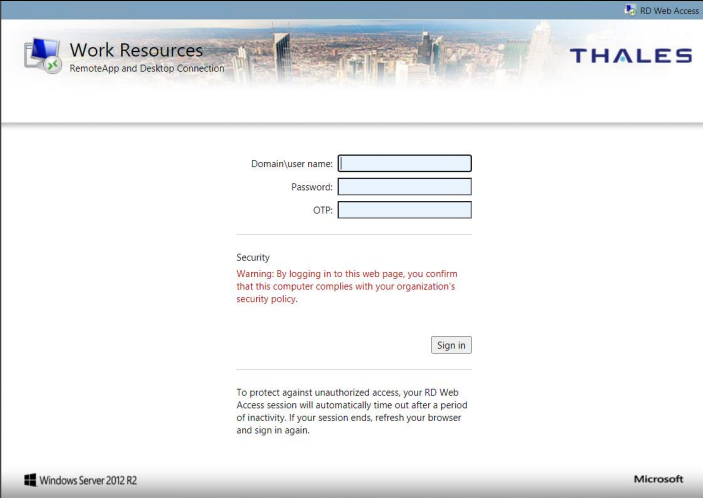
Browse to the RD Web Access page.
-
Enter the Domain\user name, Password, and OTP.
-
Click Sign in.
-
If configured for Grid OTP, leave the OTP field empty and click Sign in to open the Grid web page.
Note
Self-service AD Password Reset functionality is now added.
-
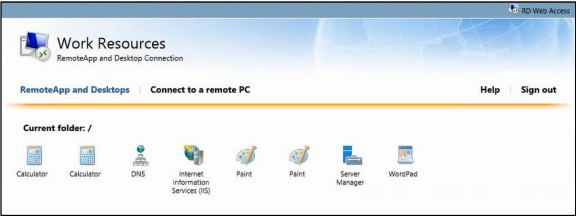
The remote desktop is displayed.
Split Authentication
-
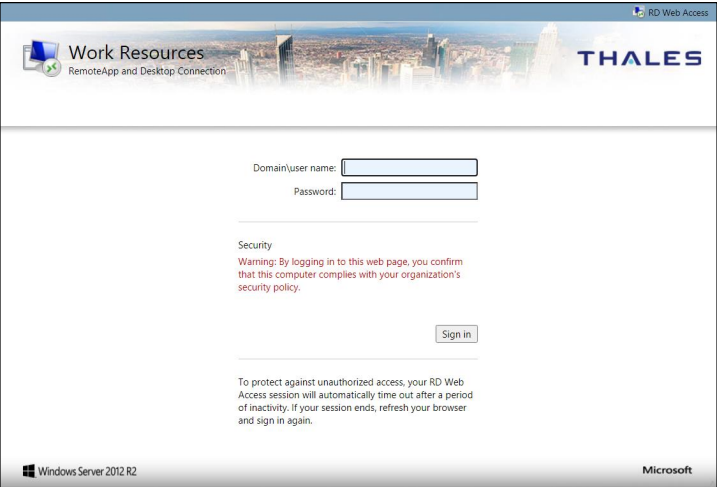
Browse to the RD Web Access page.
-
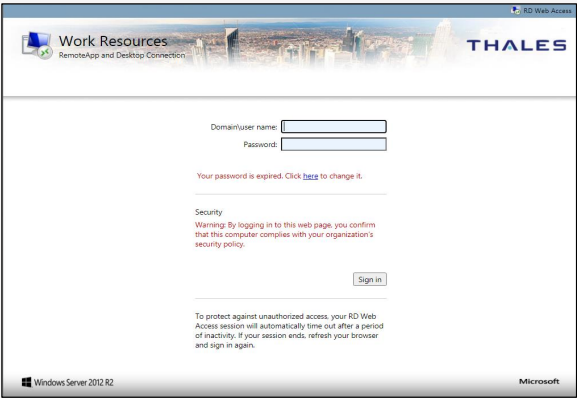
Enter the Domain\user name and Password and click Sign in.
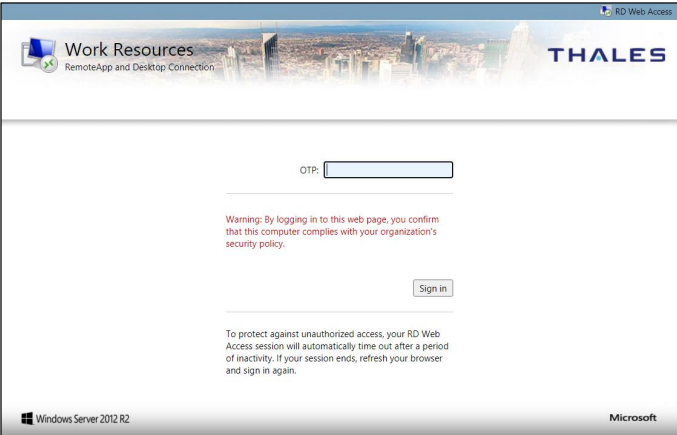
If it is configured for split authentication, the OTP field is displayed.
Note
-
If Pre Generate challenge was selected during configuration (see Configuring authentication methods), the OTP screen is not displayed. It will jump straight to the GrIDsure page.
-
Self-service AD Password Reset functionality is now added. Earlier, if a user's password expired, the user had to contact the administrator to reset it. Now, they can reset the passwords themselves. To enable this functionality, the administrator needs to set the PasswordChangeEnabled parameter to True (if not set already), after installing the agent, by following the steps:
a. Open IIS Manager on the server(s) running RDWeb.
b. Navigate to the following path: Sites > Default Web Site > RDWeb > Pages
Note: Default Web Site is the site under which the RDWeb is running. If the RDWeb is running under a different website, navigate to that site and proceed further.
c. Select Application Settings, and change PasswordChangeEnabled value to True.
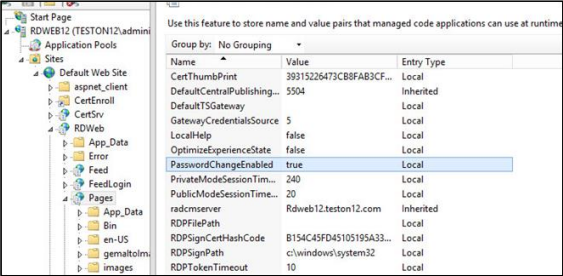
Once the parameter is set to True, a message (with a link) to enable users to change the passwords themselves is displayed at the RD Web Access page.
-
-
In the OTP field, enter the passcode and click Sign in.
-
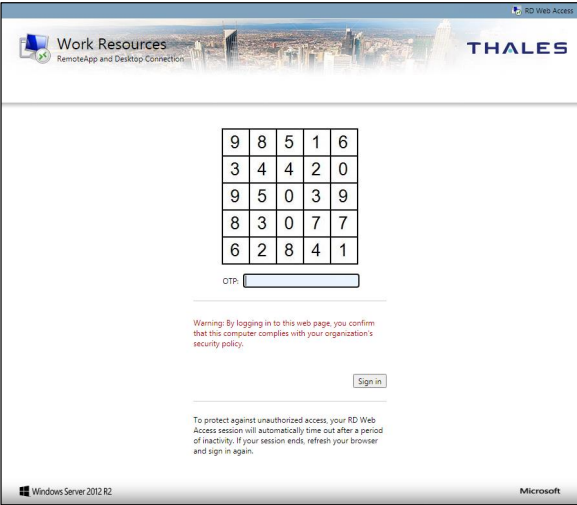
If configured for GrIDsure do the following:
a. Leave the OTP field empty and click Sign in.
b. The GrIDsure page is displayed. Enter the Grid OTP and click Sign in.
-
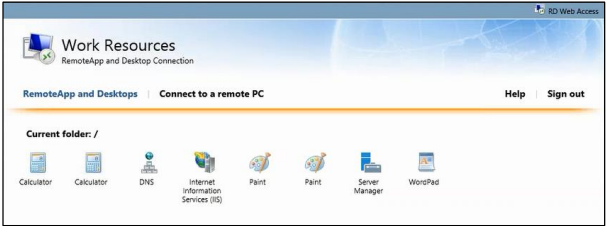
The remote desktop is displayed.