Installing The Agent
You need to install three components of the SafeNet Agent for RD Gateway—RD Gateway Plugins, RD Gateway Monitor, and RD Web. The RD Gateway Plugins and RD Gateway Monitor components of the agent are to be installed on the computer where you have set up RD Gateway. Similarly, the RD Web component of the agent is to be installed on the computer where you have set up RD Web. For installing all the components, you have only one installer.
Note
Installer will always be in the English language, irrespective of the language of the operating system.
Installation Steps
-
Run the Safenet Agent for Microsoft RDGateway installer.
If you have logged into the system as an administrator or if you are a member of the Domain Admin group, the installation process will run successfully. Otherwise, a window will appear requiring you to provide administrator credentials.
-
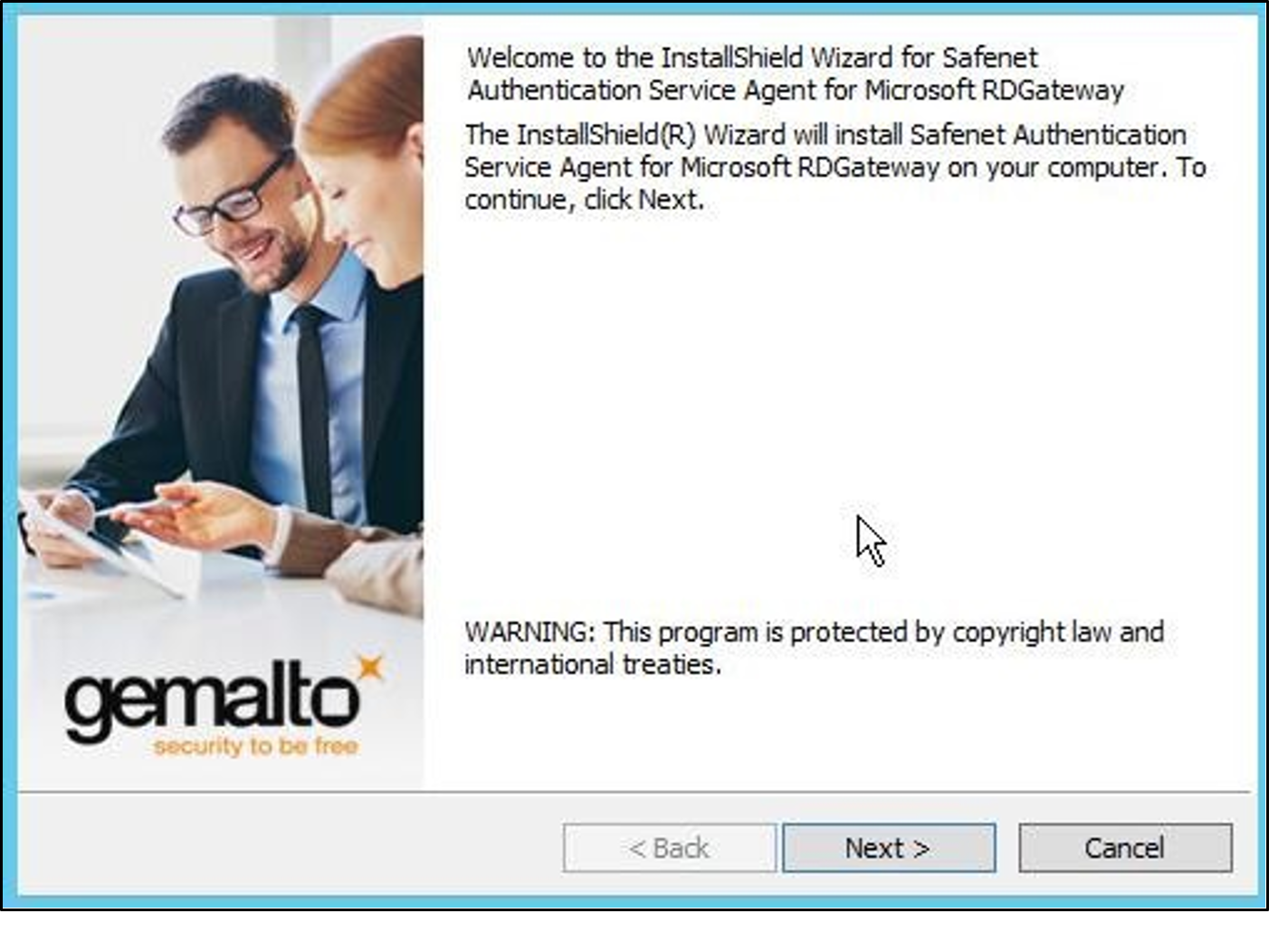
On the Welcome to the InstallShield Wizard for SafeNet Authentication Service Agent for Microsoft RDGateway window, click Next.
-
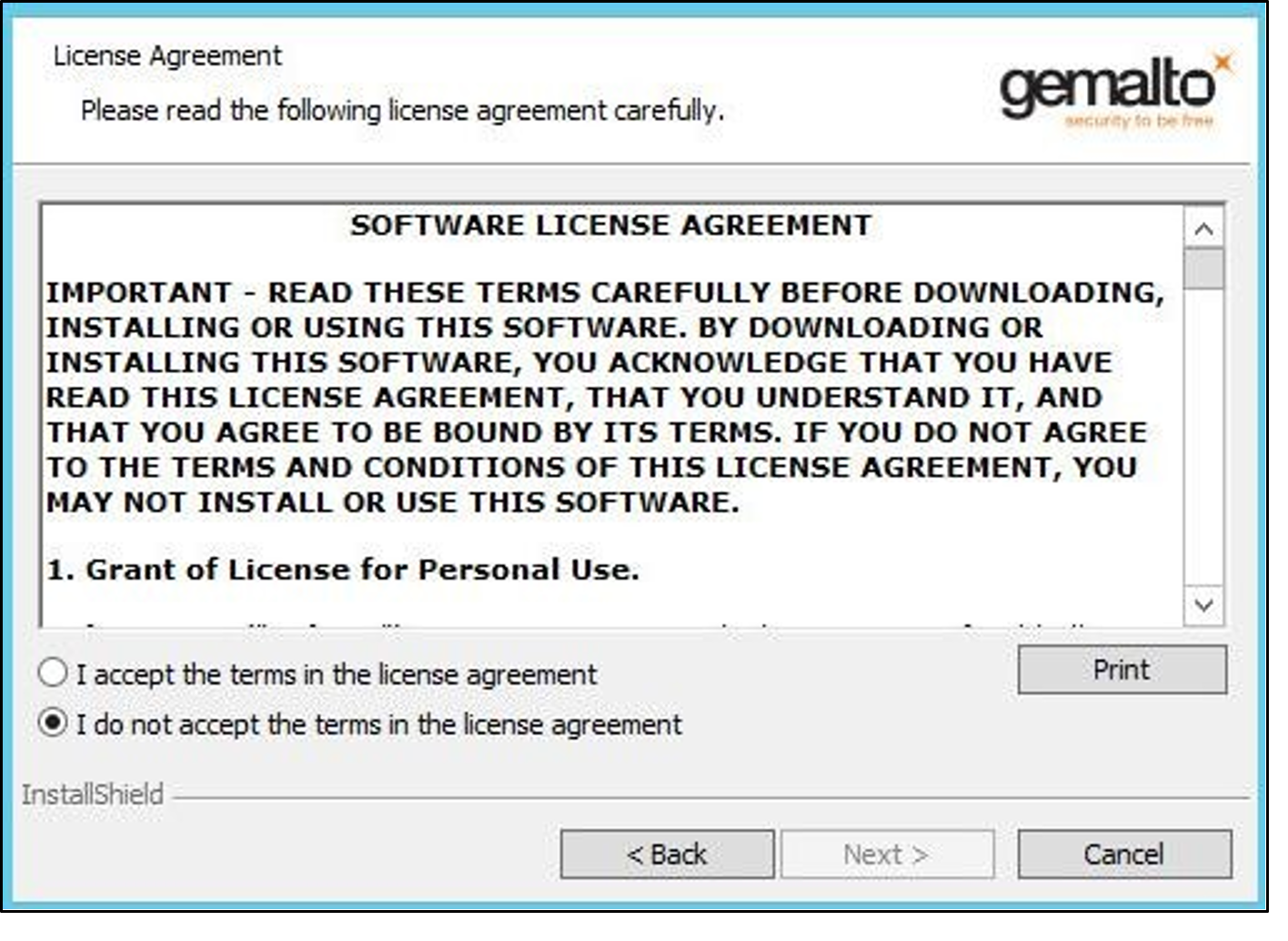
On the License Agreement window, read the software license agreement and to proceed, select I accept the terms in the license agreement option, and click Next.
-
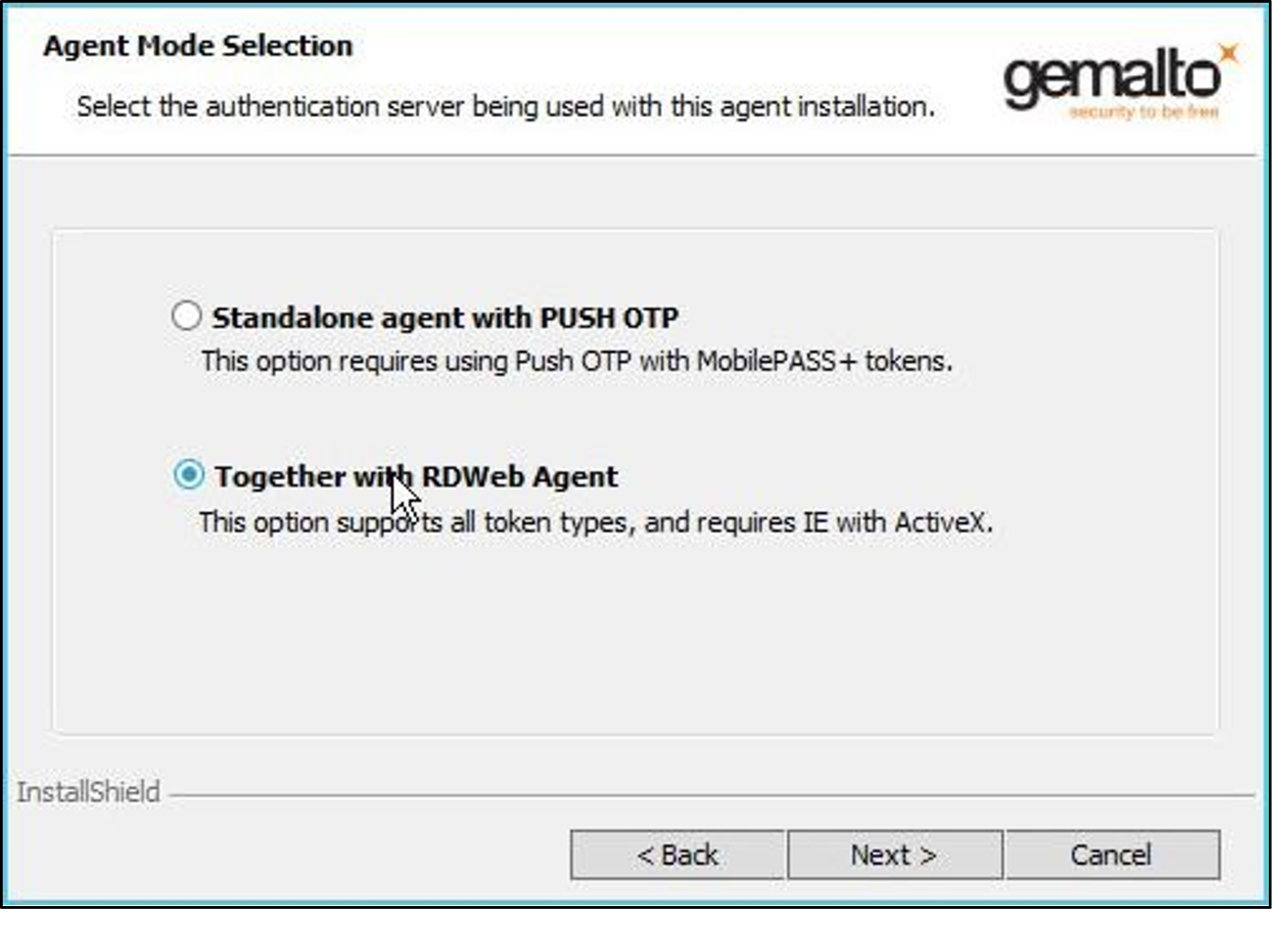
On the Agent Mode Selection screen, select the Together with RDWeb Agent radio option, and click Next.
-
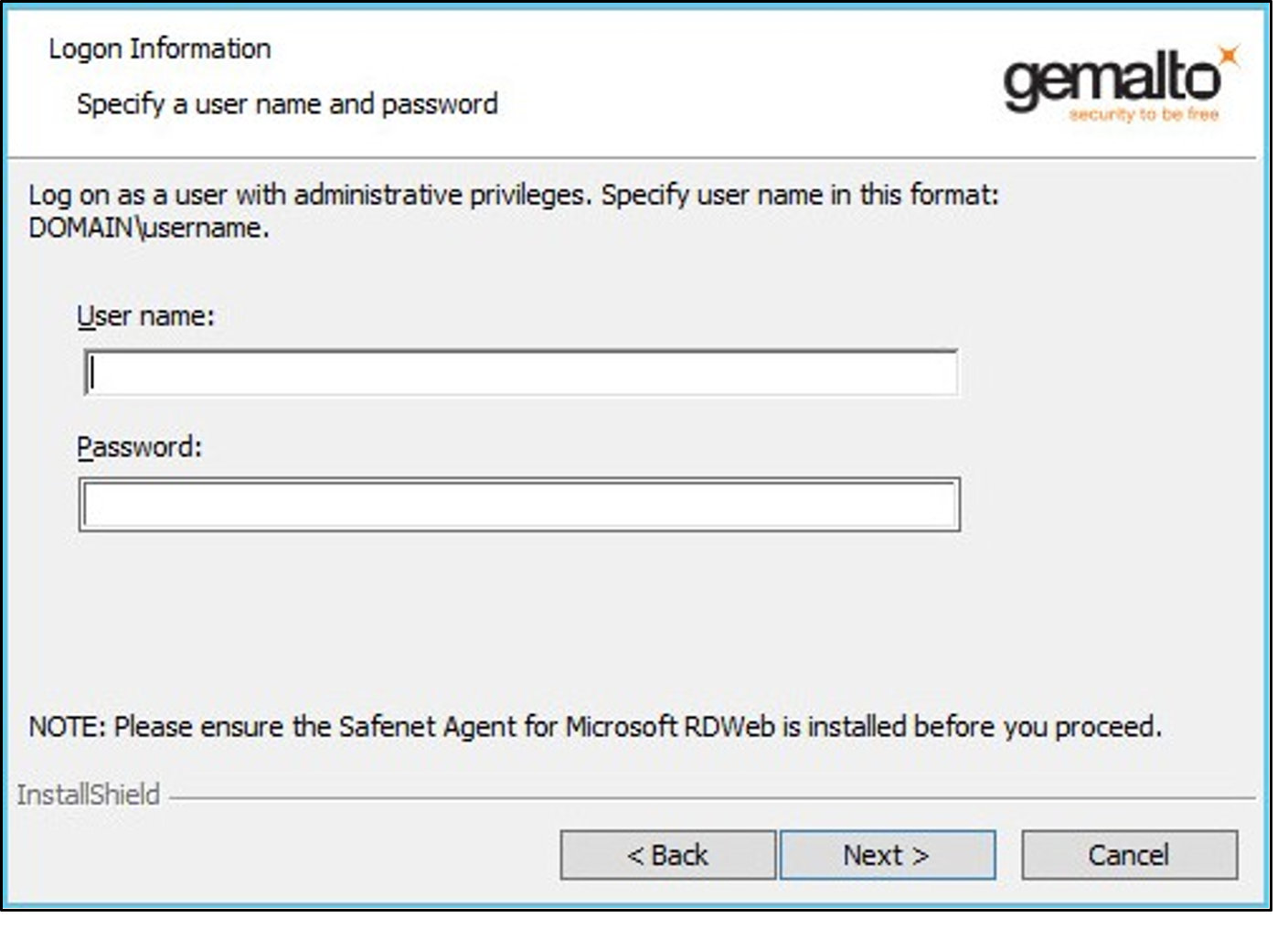
On the Logon Information window, enter the credentials of a user with administrator privileges or a user who is a member of the Domain Admin group, and click Next.
-
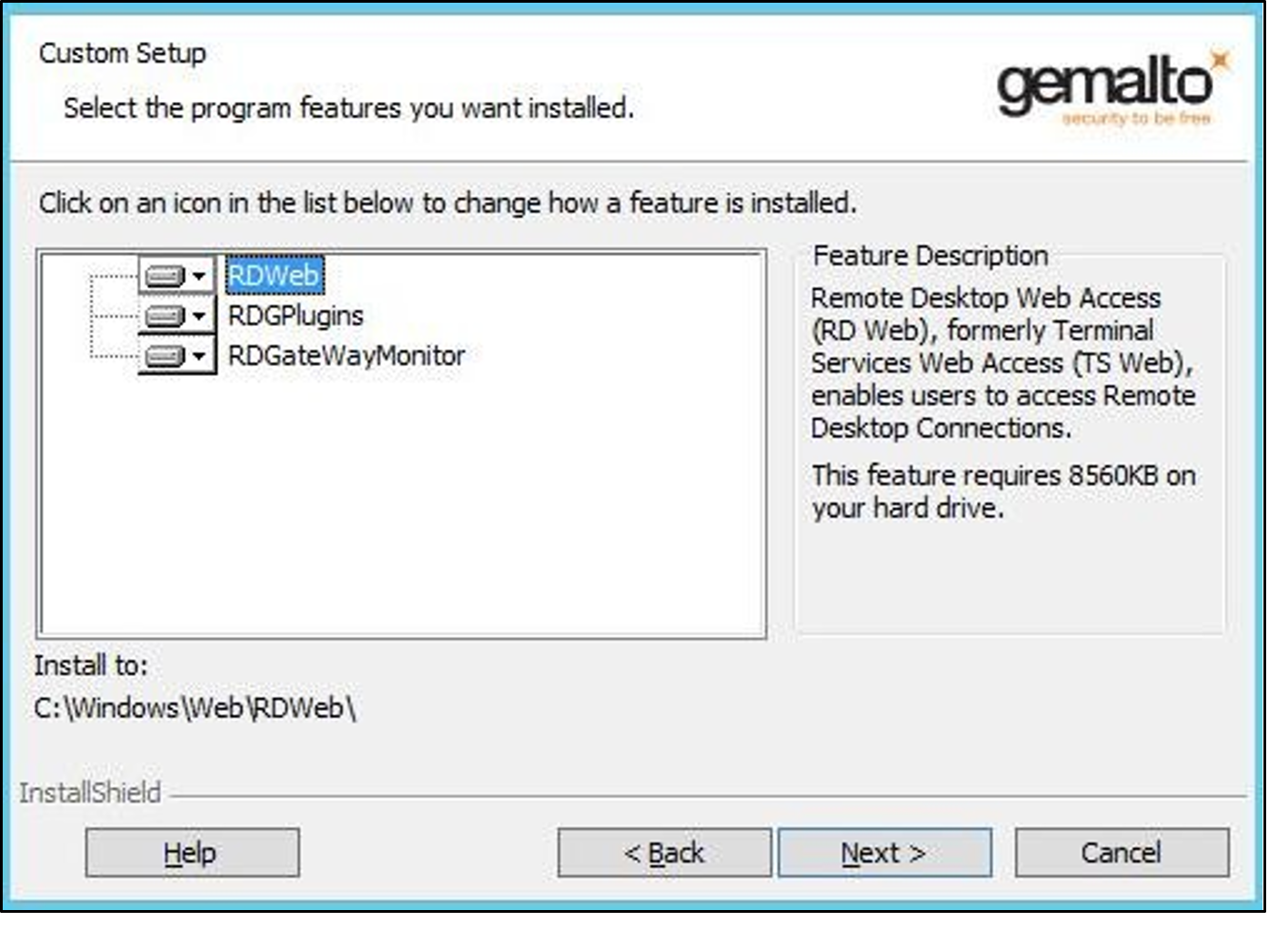
On the Custom Setup window, clear the components that you do not want to install, and click Next.
- For RD Gateway, RDGatewayMonitor and RDGPlugins features need to be installed.
- For RD Web, only RDWeb feature needs to be installed.
-
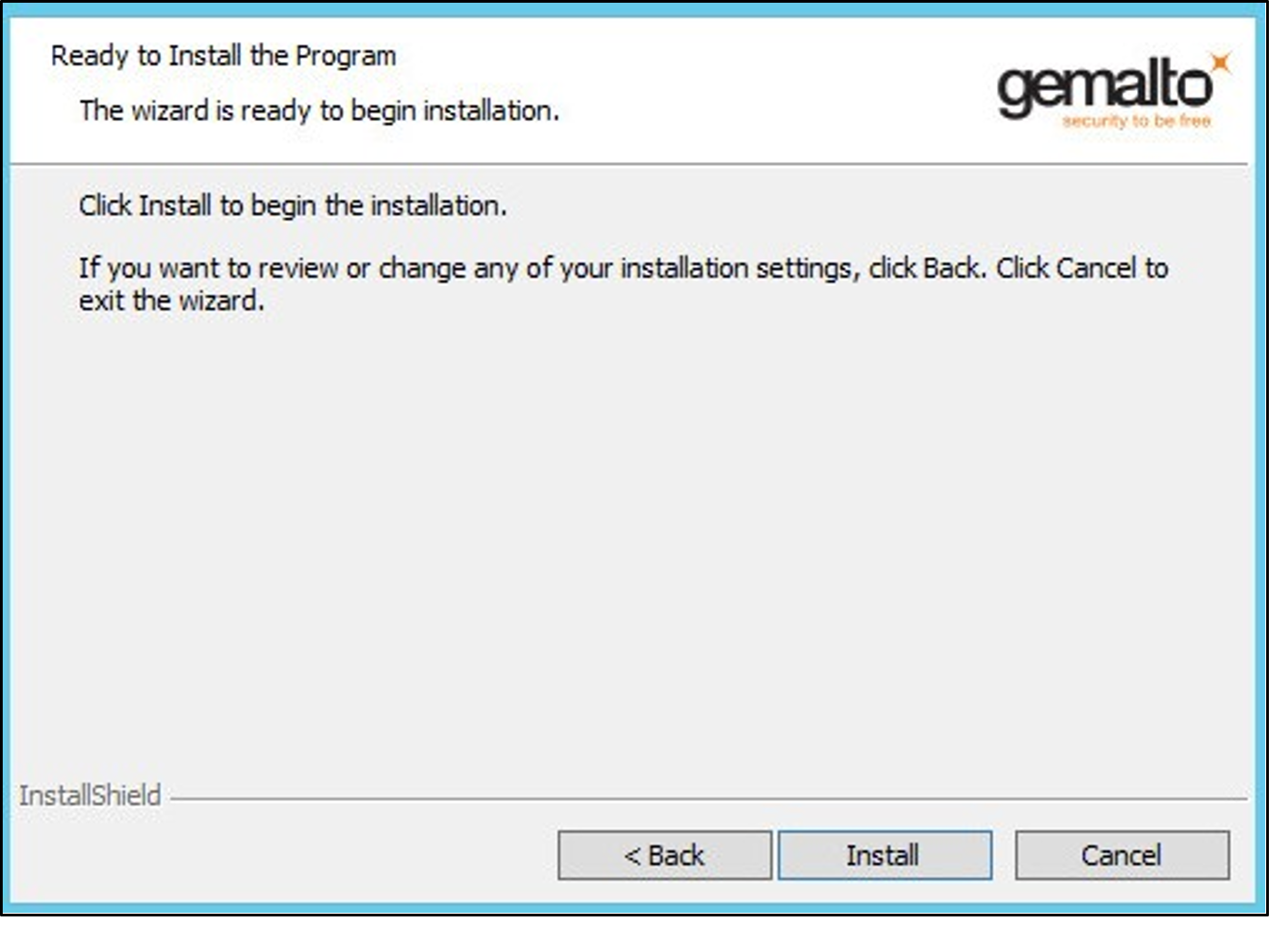
On the Ready to Install the Program window, click Install to begin the installation.
-
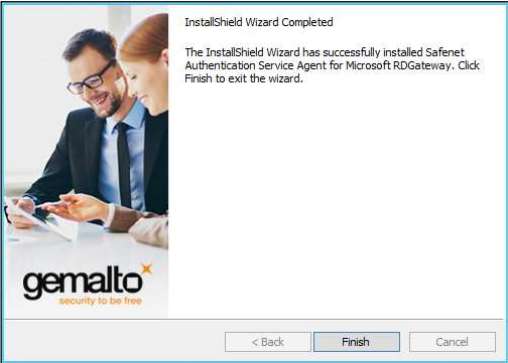
When the installation is completed, the InstallShield Wizard Completed window is displayed. Click Finish to exit the installation wizard.