



SafeNet Remote Logging Agent
SafeNet Authentication Service (SAS) logs are generated on the service providers' servers. The SafeNet Agent for Remote Logging sends the following information to a receiving agent on the vendor's local computer, where it can be displayed in the event viewer, syslog, or log file:
- Authentication Activity — This information includes activity such as authentication successes and failures, and is displayed in the SAS console, in the Snapshot > Authentication Activity module.
- Operator Activity (if configured) — This information includes common operator actions in the SAS console, such as:
- Logging in or out
- Unlocking tokens
- Creating or deleting organizations
- Creating, updating, resending, or removing provisioning tasks
- Creating, removing, or updating Operators and their roles
- Applying group PIN changes
- Adding, removing, or updating pre-authentication rules
- Changing to sites or licenses
- Executing reports
A variety of reports are also available that you can run to view additional information, such as outstanding provisioning tasks, token ownership, and more.
| Environment | Description | ||
|---|---|---|---|
| Supported Platforms | > Windows Server 2025 > Windows Server 2022 > Windows Server 2019 > Windows Server 2016 |
||
| Supported Architecture | > 64-bit | ||
| Additional Software | > Windows .NET Framework 4.8 Network Port |
> TCP Port 8459 (outbound) > TCP Port 8458 (inbound) > UDP Port 514 (syslog only – optional) |
Install SafeNet Agent for Remote Logging
Install SafeNet Agent for Remote Logging as follows:
- On the remote (vendor’s) computer, run the following installation file:
- SafeNet Authentication Service Logging Agent x64.exe (64-bit)
- On the Welcome window, click Next.
- On the License Agreement window, read the software license agreement and to proceed, select I accept the terms in the license agreement option, and click Next.
-
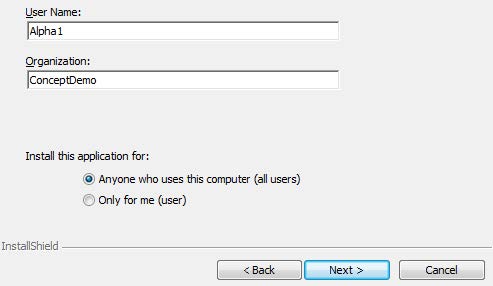
On the Customer Information window:
- Enter your User Name and Organization.
-
Select one of the following to determine who can use the application:
- Anyone who uses this computer (all users)
- Only for me
-
Click Next.
- On the Destination Folder window, click the Change button to select a new install location, or click Next to accept the default location.
- On the Ready to Install the Program window, click Install to begin installation. When the process completes, the InstallShield Wizard Completed window opens.
- Click Finish to exit the installation wizard.
Configure the logging agent server settings on SAS
To configure the logging agent server settings on SAS:
- On the SAS console, select Comms > Communications > Logging Agent Server Settings.
- To configure settings for other than the default SAS logging agent server, select Custom.
- Inbound is the SAS server address to which logging agents (for example, SafeNet Agent for Remote Logging) send data.
- Outbound is the SAS server address from which logging agents (for example, SafeNet Agent for Remote Logging) receive data.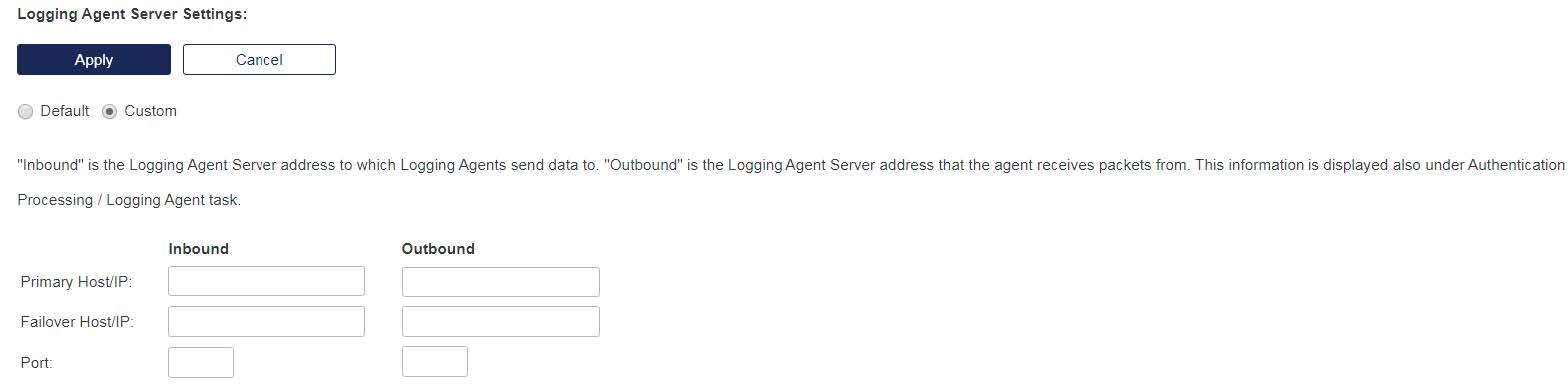
- Configure the SAS logging agent server settings:
- Primary Host/IP — This is the FQDN host name or IP address of the SAS logging agent server.
- Failover Host/IP — This is the FQDN host name or IP address of the alternate STA logging agent server if the primary server selection is not available.
- Port — This is the port number to connect to the Logging Agent server.
- Select Apply.
- Navigate to Comms > Authentication Processing > Logging Agent > Download to download the BMC file.
Configure SafeNet Agent for Remote Logging
The following ports are used on the SafeNet Agent for Remote Logging computer:
- Port 8458 - Inbound traffic
- Port 8459 - Outbound traffic
To configure the agent:
- Click Start > All Programs > SafeNet > Agents > SAS Logging Agent. The SafeNet Agent for Remote Logging configuration window is displayed.
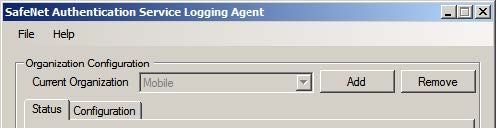
- Beside the Current Organization field, click Add.
- Browse to the downloaded
LoggingAgentConfigFile.bmcfile, select it, and click Open. The Current Organization section will update to display information about your Virtual Server. - Select the Configuration tab.
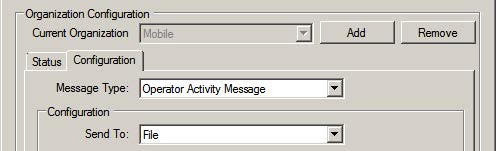
- From the Message Type list, select one of the following:
- Authentication Message
- Operator Authentication Message
- From the Send To list, select one of the following:
- File (refer step 7)
- Event Viewer (refer step 8)
- Syslog (refer step 9)
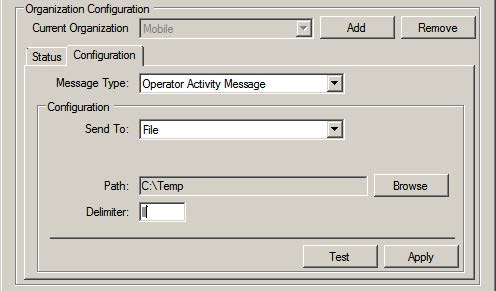
- If you selected File:
- Browse to the folder.
- Enter the required delimiter for the CVS file.
- Click Apply.
- To test, click Test and open the CVS file.
- If you selected Event Viewer:
- In the Source field, select SAS Logging Agent.
- Click Apply.
- To test, click Test and open the Event Viewer.
- If you selected Syslog:
- In the Primary field enter the IP:Port of the Syslog server.
- In the Secondary field, enter the IP:Port of the secondary (backup) Syslog server.
- Click Apply.
- To test, click Test and open the Syslog.
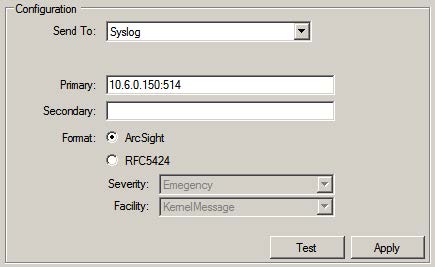
SafeNet Agent for Remote Logging sends logs to both Syslog servers if two are configured.

