Troubleshooting
Exporting Logs For Troubleshooting
Exporting Logs On RD Gateway
To export logs on RD Gateway, run the following commands on PowerShell:
(Get-Service "RD GatewayMonitorService").ExecuteCommand(129)
get-eventlog -newest 1000 -Logname "Application" -Source "RD GatewayMonitorSource" -ErrorAction SilentlyContinue | Select TimeWritten, Message | Export-csv .\desktop\RDGateway.csv
copy c:\RDGPlugins\log.txt and save
To export logs on RD Web, run the following command on PowerShell:
get-eventlog -newest 1000 -Logname "Application" -Source "RD WebAccess" -ErrorAction SilentlyContinue | Select TimeWritten, Message | Export-csv .\desktop\RDWeb.csv
Creating Installation Log
If you require that the installation log is created, run the installer from the command prompt using the following command:
RD Gateway.exe /V"/L* setup.log"
Error Handling
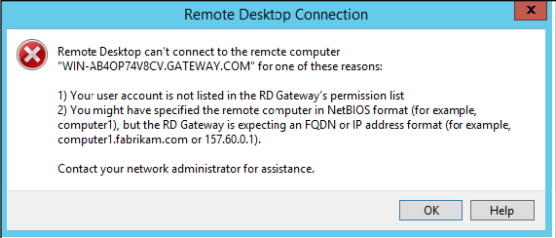
Permissions And NetBIOS Error
If you encounter the 'Permissions and NetBIOS' error while launching the RDP file, review the Resource Authorization Policy (RAP) and ensure that it is in the right order.
1923 Error
When you have uninstalled the agent and are trying to install it again, you may encounter the 1923 error.
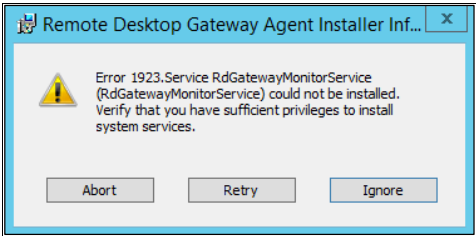
The uninstallation process of the SafeNet Agent for RD Gateway may not remove the RD Gateway Monitor service in several conditions, and change the state of the service to disabled and mark it for deletion.
In this case, log off or restart the system, and then check if the service was removed.
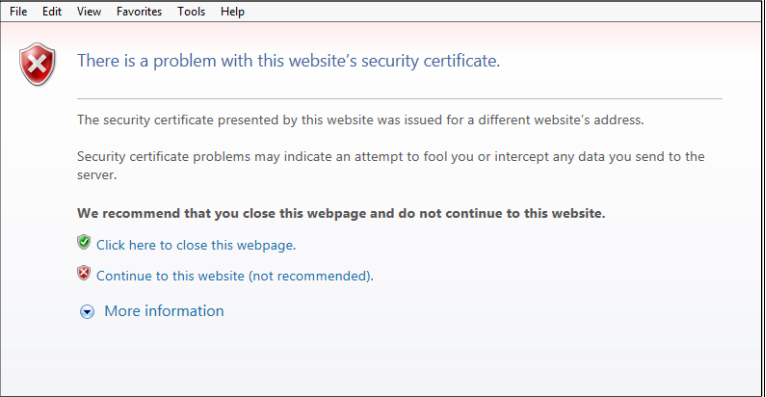
Certificate Error
While connecting to the protected remote computer, you may encounter a certificate error. This error is shown because the certificate used is not a proper certificate. Replace your certificate with a proper certificate, and then try again.
Installation Error
During a few instances, the RD Gateway service (tsgateway) does not stop automatically on installation or uninstallation. In these cases, the user needs to manually stop the service.
To stop the RD Gateway service, perform the following steps:
-
Open the Task Manager.
-
On the Service tab, search for the tsgateway service, and note down its process ID (PID).
-
On the Details tab, search for the process ID.
-
Select the process PID, and click End Task.
To verify the status of the RD Gateway service, perform the following steps:
-
Go to Services Console.
-
Search for the RD Gateway service. The status should be Stopped.
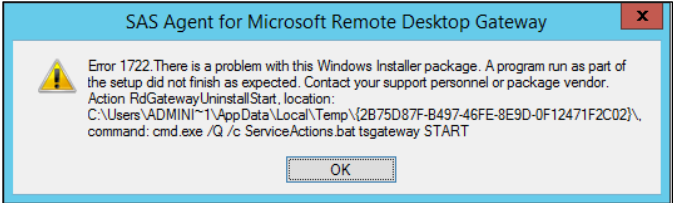
If the user continues with the installation or uninstallation without manually stopping the RD Gateway service, the following error (Error 1722) will appear.
Hostname Fetching Error
On the client machine, while connecting to a remote machine using the agent, you may encounter an error after the IIS authentication page.
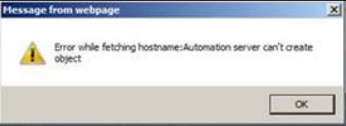
To solve the issue, follow these steps:
-
Perform the Active X settings as illustrated in the Performing Web Browser Settings section in the Configuration guide.
-
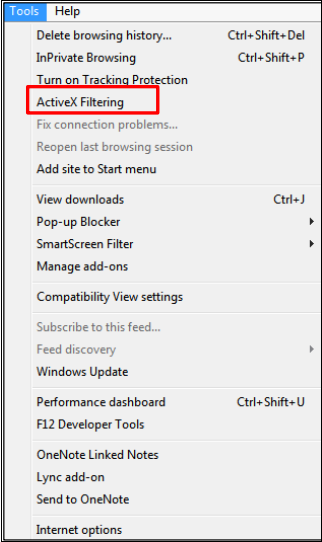
In Internet Explorer, in the Tools menu, ensure that ActiveX Filtering is not checked.
Hostname Unavailability Error
On the Work Resources window, when you click on Connect to a Remote PC, you may see a hostname unavailability error message.
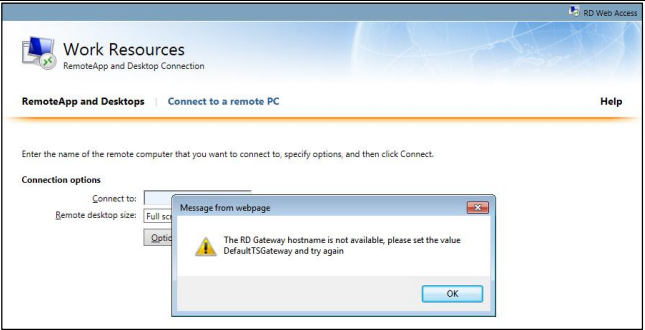
To resolve this issue, refer to the Configuring RD Web Parameters section in the Configuration guide, and set the following parameter:
<add key="DefaultTSGateway" value=""/>
TS Gateway Service Restart Issues
If Remote Desktop Gateway installer reports errors while installation or uninstallation, the RD Gateway service (tsgateway) should be kept in Stopped state for subsequent attempts for installation or uninstallation.
The following installation command should be run from the command line:
RD Gateway.exe /V"/L* setup.log"
The setup.log file created should be shared with the support team for troubleshooting.
Updating RD Connection Protocol
To update the RD connection protocol to 8.1 (on Windows 7), install the following packages:
Disconnecting Established Connection On RD Web
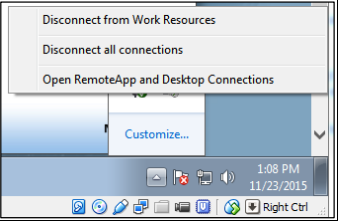
To fully disconnect an established connection on the client machine, make sure that the remote connection icon at the task bar is not visible. If it is visible, right-click on the icon and select Disconnect all connections.
Hostname Resolution
The hostname of the RD Gateway server should be resolvable at the client machine. Ideally, the resolution is done by the DNS server configured on the client machine. Also, in DNS of the corporate network, the entry for the RD Gateway server should already be done. However, if not yet done, it needs to be manually configured in the hosts file of the client machine.
This also applies for regular install of the RD Web and the RD Gateway (without the Agent).
Publisher Identity Issues
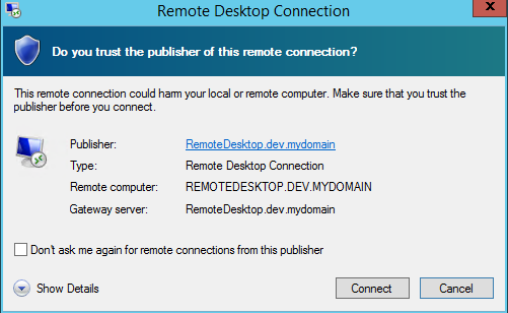
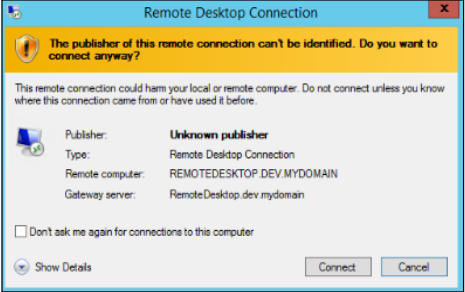
If a user is prompted with a publisher identity not recognized screen, the user must perform the following steps:
-
Check if the key RDPSignAlgo has correct values at:
<SystemDrive>\windows\web\RDWeb\pages\Web.Config -
If the values of the RDPSignAlgo parameter is not in accordance with the certificate algorithm of the default RD Web setup, upload the correct certificate in the configuration update section.
-
Once all the values are correct, the user will be prompted with the correct publisher identity screen.