Installing The Agent
-
Execute the SafeNet Agent for Microsoft RDGateway installer.
Note
If you have logged into the system as an administrator or if you are a member of the Domain Admin group, the installation process executes successfully. Otherwise, a window appears requiring you to provide administrator credentials.
-
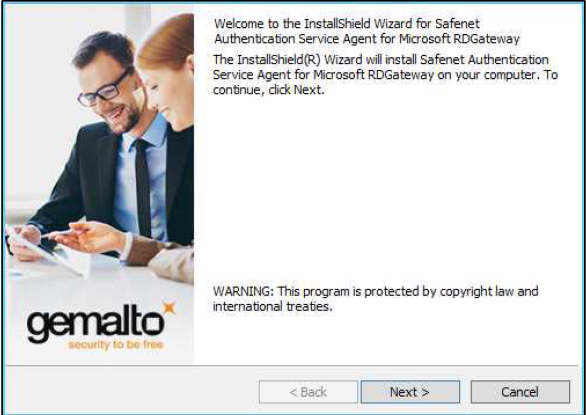
On the Welcome window, click Next.
-
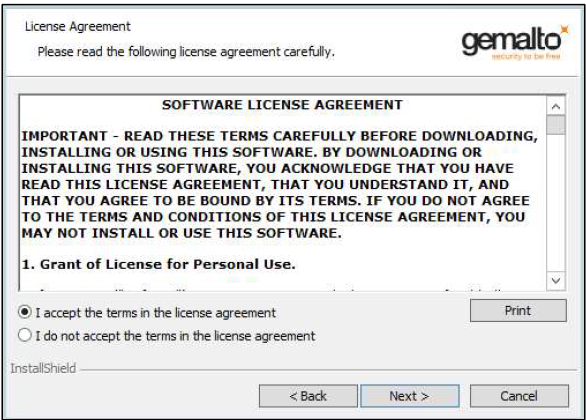
On the License Agreement window, select I accept the terms in the license agreement, and click Next.
-
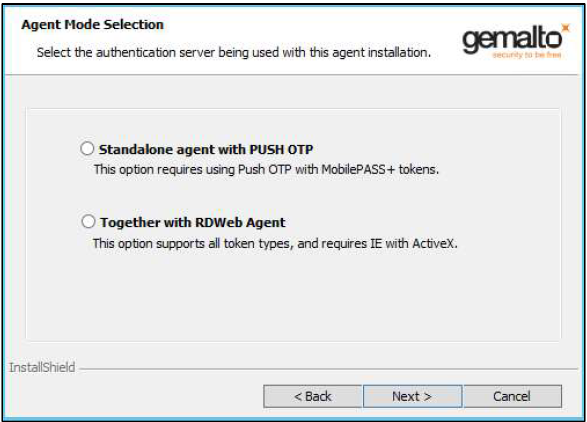
On the Agent Mode Selection screen, select the Standalone agent with PUSH OTP radio option, and click Next.
Note
The Together with RDWeb Agent option is available during the installation process and allows the agent to function using the RD Web interface. Existing documentation is available for this agent mode.
-
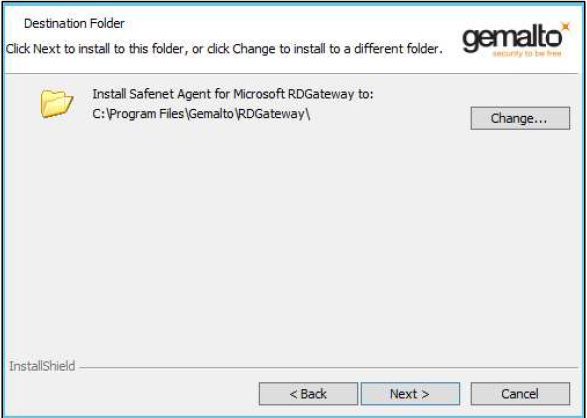
To change the installation folder, click Change and navigate to the required folder, and then click Next. To accept the default installation folder as displayed, click Next.
-
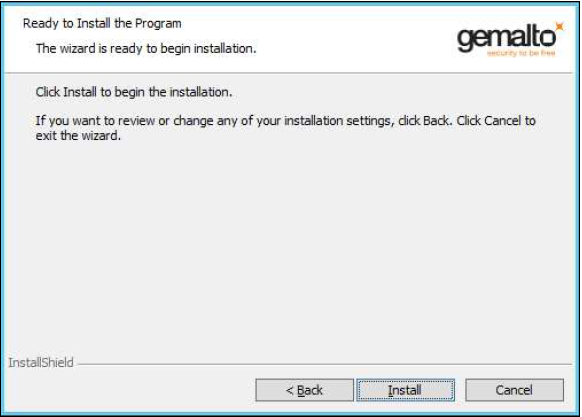
On the Ready to Install the Program window, click Install to begin the installation.
-
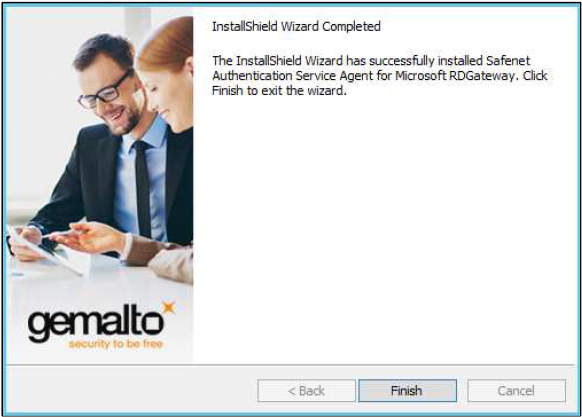
When the installation is completed, the InstallShield Wizard Completed window is displayed. Click Finish to exit the installation wizard.