



Prerequisites
-
Ensure that users are able to access the remote resource via RD Web access prior to deploying the agent.
-
Ensure that the SafeNet Agent for RD Web is installed and configured on the machine which hosts RD Web.
-
Administrative rights are required for installation and configuration of the SafeNet Agent for RD Gateway.
-
The RD Services (TermService) should not be running on the remote desktop gateway machine unless the operator needs to remotely manage it.
-
The remote machine (session host) that needs to be accessed should have the remote desktop services running. Also, it should be accessible from the remote desktop gateway, and should be on the same domain as the remote desktop gateway.
-
Ensure that the RD Gateway service (tsgateway) is running, and the mode is set to Automatic.
-
General purpose SHA1/SHA256 certificate (for RDP file digital signing) and SHA256 certificate (for gateway access token signing) must exist in both the RD Web and RD Gateway machines.
-
.NET framework 4.0 (or above) must exist on both the RD Web and RD Gateway machines.
-
Ensure that the RDG_CAP_AllUsers policy is enabled.
-
Ensure that the user has the 'log on as a service' permission before using the Service Control (SC) command.
When you configure a service to run under a specific account via Service Properties, Windows automatically grants the account the 'log on as a service' permission. Before using the SC command (sc.exe) to create the Windows Service (via installer), the administrator has to grant the user the 'log on as a service' permission. This setting determines which user accounts can register a process as a service. Running a process as a service avoids the need for human intervention. To configure a user account to have 'log on as a service' permission, follow these steps:
Note
The 'log on as a service' permission applies only to the local computer and must be granted in the Local Security Policy of the computer.
-
Login to the computer with administrative privileges.
-
Open the administrative tools by selecting Start > Control Panel > System and Security > Administrative Tools.
-
Click Local Security Policy from the list of file names. The Local Security Policy dialog box opens.
-
Expand Local Policies by clicking its icon in the left navigation pane. The constituent files list in the right pane.
-
Double-click User Rights Assignment from the list.
-
Locate Log on as a service, right-click its icon and select Properties. The Log on as a service Properties dialog box opens.
-
Click Add User or Group... to add a new user(s).
-
Search the user(s) using Select Users, Computers, Service Accounts, or Groups dialog box, and click OK. You can search for multiple users by separating each user name with a semicolon.
Note
Ensure that the user(s) you have added (using the above process) is not listed in the Deny log on as a service policy in the Local Security Policy.
-
-
For the agent installer to run successfully, the Active Directory for Windows PowerShell feature must be enabled on the Windows Server.
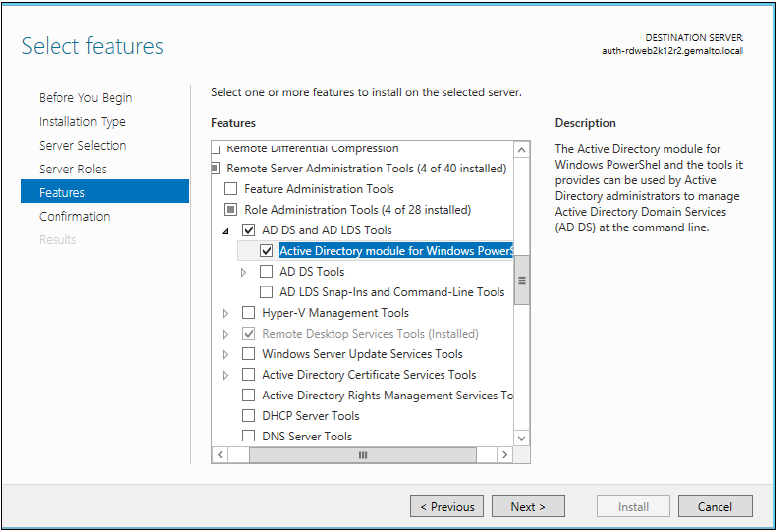
Enable the feature by following these steps:
-
Open Server Manager.
-
Click Add roles and features.
-
Navigate to Features tab.
-
Navigate to Remote Server Administration Tools > Role Administration Tools > AD DS and AD LDS Tools.
-
Select the Active Directory module for Windows PowerShell checkbox, and click Next.
-
Select the Restart the destination server automatically if required checkbox, and install the feature.
-

