



Encrypt a Column
Prerequisites
Before encrypting a table, ensure the:
-
Column-level encryption properties is applied on the column.
-
Migration Server is up and running.
Steps
To encrypt table:
-
Log on to the CipherTrust Manager GUI.
-
Click Database Protection to open the application. The Databases screen displays the list of existing database connections, if any.
-
Click the desired database connection.
-
Click the Tables link.
-
On the Authorize Database screen, enter the Database Password to access the tables.
-
Under the Tables with Encrypted Columns section, click the desired table. The list of columns is displayed.
-
Click Encrypt. The Encrypt < table name > wizard is displayed. Follow the steps to complete the setup.
a. Column Info
c. Preview SQL
Column Info
This screen displays the list of columns that will be encrypted. Click Next.
Add Data Settings
-
On the Data Settings screen, enter/select the following details:
Field Description New Table Name Name of the table that will hold the encrypted data. View Name Name of the view. Insert Trigger Name of the INS trigger. Update Trigger Name of the UPD trigger. Batch Size Batch Size in which data will be encrypted. -
Click Next.
Preview SQL
-
If you want to modify Data Settings, click Edit, update the fields, and click Next.
-
Preview the SQL code to be executed. This code cannot be modified.
-
Click Next.
Perform Operation
The Perform Operation screen shows the progress of the operation. A message The column encrypted successfully. Close the window to return to the list is displayed on the screen. Click Close to exit the wizard.
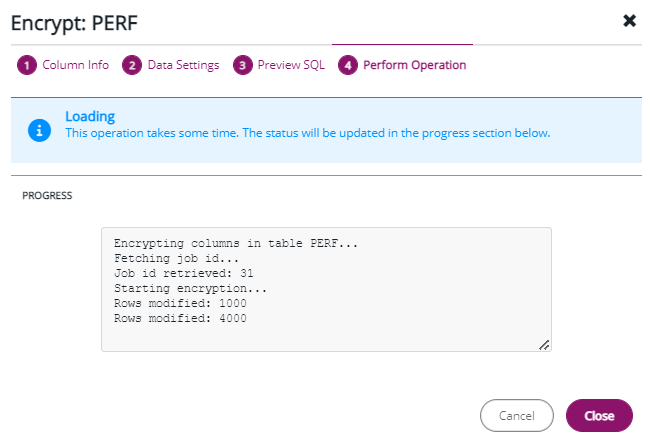
The possibilities of the data encryption process could be:
Encryption ends successfully
If the encryption ends successfully it is recommended to Delete Old Data.
Encryption fails
If the encryption fails or is interrupted, click Job History and selcet any of the following options:
-
Click Restore Data to drop the columns created during the migration. This returns the table to its previous state.
-
Click Resume Operation to continue the process from where it ended. You may want to select this option after you have remedied the source of the error.
Encryption is cancelled
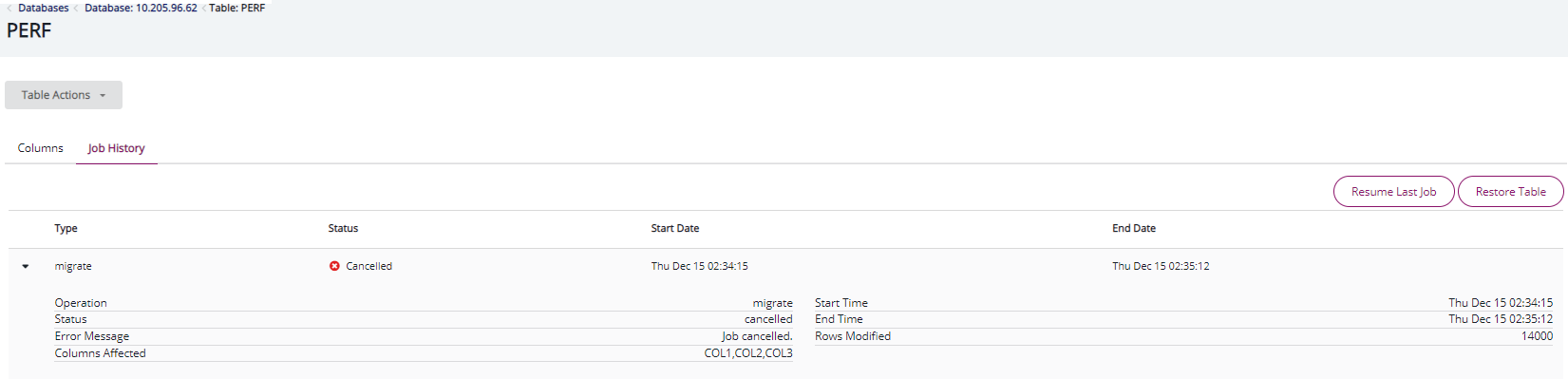
If encryption is cancelled, click Job History and selcet any of the following options:
-
Click Restore Data to drop the columns created during the migration. This returns the table to its previous state.
-
Click Resume Operation to continue the process from where it ended. You may want to select this option after you have remedied the source of the error.