



Microsoft Double Key Encryption (DKE) Resources
Caution
This feature is a technical preview for evaluation in non-production environments. A technical preview introduces new, limited functionality for customer feedback as we work on the feature. Details and functionality are subject to change. This includes API endpoints, UI elements, and CLI commands. We cannot guarantee that data created as part of a technical preview will be retained after the feature is finalized.
CCKM provides support for Double Key Encryption (DKE) for Microsoft 365. With DKE, two keys are used to access content (such as files or documents) that is protected with the sensitivity labels that you apply when using any one of the supported Microsoft Office apps. You hold one key in CCKM, which you maintain full control over using the using Microsoft’s Double Key Encryption service. The other is securely stored within Microsoft Azure. To decrypt and gain access to the protected content, both keys are required. Since Microsoft holds only one of the keys, this solution ensures that Microsoft cannot independently access this content. Only your authorized users can access the protected content.
Only your highly confidential data should be protected by DKE, which is typically a small percentage of your organization’s overall data. For more information about DKE, guidance on what type of content to protect, the supported office applications, and other information, refer to Double Key Encryption.
DKE encryption workflow
-
Make a connection with the Azure RMS Protection Service.
-
Collect the User certificates, AIP templates, and RMS customer key.
-
Send a request to CCKM for the DKE public key.
-
Collect the DKE public key from CCKM.
-
Encrypt the content, content key, and encrypted content key:
-
Encrypt the content with the content key.
-
Encrypt the content key with the DKE public key.
-
Encrypt the encrypted content key with the Azure RMS key (RMS customer key).
-
The content is protected with the double encrypted content key, RMS key and DKE public key. The following illustration shows the DKE encryption workflow:
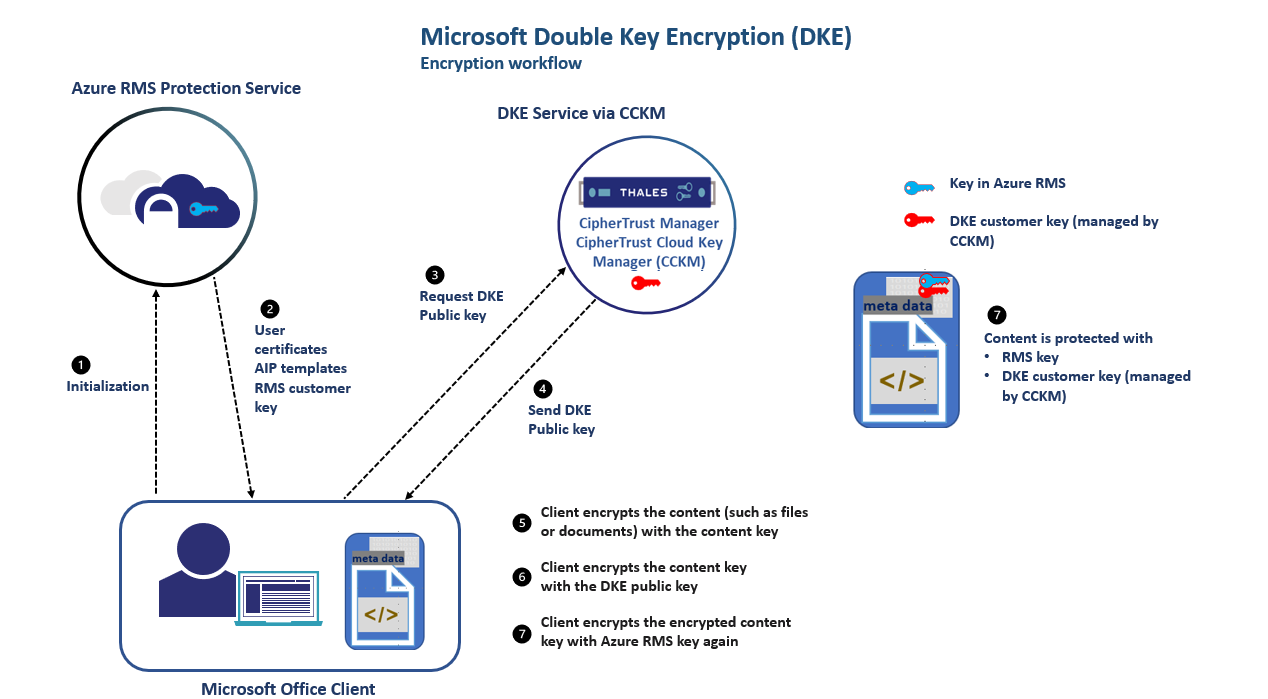
DKE encryption workflow
-
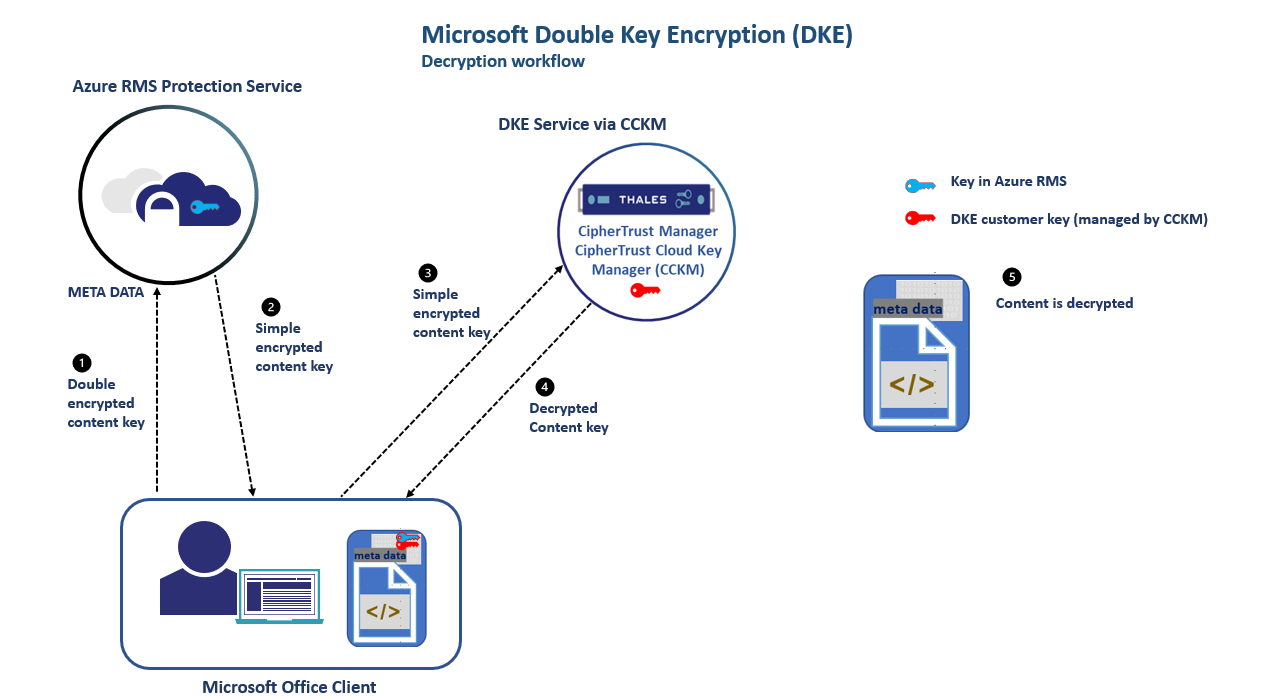
Send a request to Azure RMS Protection Service to decrypt the double-encrypted content key.
-
Collect the simple encrypted content key from Azure RMS Protection Service.
-
Send a request to CCKM to decrypt the simple encrypted content key.
-
Collect the decrypted content key from CCKM.
-
Use the content key to decrypt the content.
The following illustration shows the DKE decryption workflow:
The following are the high-level steps to configure DKE within Microsoft and CipherTrust Manager/CCKM:
Prerequisites
In preparation for deploying DKE, ensure that the following prerequisites are met:
-
Ensure CipherTrust Manager/CCKM is installed and running. In addition, ensure to activate and install the CCKM license. Refer to the CipherTrust Manager Deployment Guide and Licensing for details.
-
Microsoft 365 E5 License: Windows clients must have a Microsoft 365 E5 license. Refer to information about system and licensing requirements for DKE for more information these licensing requirements.
Note
CCKM supports built-in sensitivity labeling with Office apps. CCKM does not support Azure Information Protection unified labeling client, which is to be deprecated in the future.
-
User Presence in Azure Directory: Users who are to create and share documents or files protected by DKE must be part of the Azure Active Directory (Azure AD) associated with the organization's tenant.
Note
-
DKE is not supported on applications running on mobile devices.
-
To configure the B2B cross-tenant access settings, refer to Configure cross-tenant access settings for B2B collaboration.
-
Configure DKE on CCKM
To configure DKE on CCKM, do the following:
-
Install a third-party CA certificate on the web interface.
Note
We recommend obtaining a CA-signed certificate for the web interface from trusted CAs that are part of the Microsoft Trusted Root Program. For more information, refer to Microsoft Trusted Root Program participants.
-
From CCKM GUI or API, create a DKE endpoint. Refer to Creating Microsoft DKE Endpoints for details on how to create a DKE endpoint from CCKM GUI or Creating Microsoft DKE Endpoints using CCKM API.
Note
Only Azure AD users are currently supported. The email addresses included in the API call must be associated with a user Azure AD. The email address parameter an optional field applicable only if authorization_type is set to email.
If you specified one or more email addresses in a DKE endpoint, this field would be validated against JWT received in the decrypt operation.
Note
A Microsoft Office 365 client user and email (if configured in CipherTrust Manager) must match.
Note
The Issuer field must be specific to the tenant configured in the Microsoft Azure Portal.
Note
The web interface port within CipherTrust Manager can be changed from the default port of 443 to another port. If you plan to change the default port for the CipherTrust Manager web interface, ensure to change it BEFORE configuring the Microsoft DKE service on CCKM. Also reflect this port change when creating a DKE endpoint on CCKM as part of the prerequisites for deploying DKE. Changing the default port AFTER configuring Microsoft DKE is not supported.
Register your DKE service
After creating a DKE endpoint, proceed to register your DKE service from the Microsoft Azure portal. Refer to Register your key store for details.
Note
When registering your DKE service, ensure that Application ID URI matches the FQDN of the CipherTrust Manager. In the case where you are using a load balancer in front of the CipherTrust Manager, ensure that Application ID URI matches the FQDN of the load balancer. You can only register one DKE service per one instance of CipherTrust Manager.
Also, ensure that the publisher domain on the Branding and Properties page is set to the domain in which CipherTrust Manager is deployed. For example, if CipherTrust Manager is test.thalescpl.io, then ensure that the publisher domain includes thalescpl.io.
Create your DKE sensitivity labels
After successfully registering your key store, you are ready to create your DKE sensitivity labels from the Microsoft Compliance portal. Refer to Create sensitivity labels using DKE for details.
When creating a sensitivity label, ensure to do the following:
- Select Apply or remove Encryption on the protection settings for labeled items page.
- Select the Use Double Key Encryption checkbox to enable DKE on the Encryption page. Enter the the value of the
key_urireceived in the API response when you created a DKE endpoint using thecreate DKE endpointAPI.
Note
After a label is published by the defining policy, it may take up to 24 hours for a label to be made available (after the label policy is published) for use in a Microsoft 365 Apps, such as Word or PowerPoint.
Note
For labels that are configured to have Offline Access set to Never, the decrypt requests will be sent to the CipherTrust Manager. Otherwise, if labels are configured to have Offline Access set to Always, the decrypt requests will not be sent to the CipherTrust Manager
Refer to Managing DKE Endpoints to manage DKE resources on CCKM.

